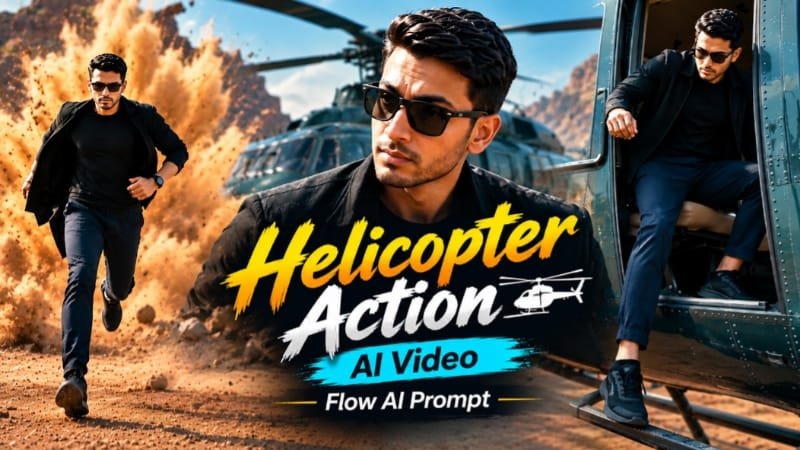
Thalapathy Vijay fans, get ready for the next big viral trend — the Helicopter Hero Entry AI Video, made using Google Flow (Veo 3.1). This cinematic mass-entry style video shows a hero descending from a helicopter in slow-motion, dust flying, crowd cheering — exact “Vijay movie intro scene” vibe. Is article mein hum aapko step-by-step batayenge ki apna khud ka photo use karke ye viral helicopter entry video Google Flow mein kaise banaye.
🚁 Ye Trend Itna Viral Kyun Ho Raha Hai
Vijay ki movies jaise Leo, Master, Beast, aur Bigil mein hero entry scenes hamesha next-level hote hain.
Ab fans apne khud ke photo se wahi mass entry feeling create kar rahe hain, bina kisi film set ke.
Helicopter se utarte hue, slow-motion mein dust aur wind effect ke saath, crowd background mein cheer kar rahi ho — ye combination Instagram Reels aur YouTube Shorts pe dhamaal macha raha hai.
Google Flow ka Veo 3.1 model is trend ke liye perfect hai kyunki ye camera movement, lighting, aur realistic motion ekdum professional level pe generate karta hai.
🎬 Google Flow Helicopter Entry Prompt
Neeche diya gaya prompt structure copy karke apna reference photo upload karo, fir apna dialogue ya scene detail fill karo.
Use the uploaded reference photo for the man's face, hairstyle, skin tone, body build and height. Keep identity exactly same as reference photo — no alteration to face, body, or hairstyle in any scene.

Keep the person's body proportions natural and realistic, matching the exact build shown in the reference photo.

Outfit: navy blue trousers and black sneakers during the helicopter exit; a black jacket/top over navy jogger pants, black sneakers, black sunglasses, and a black wristwatch for the middle scenes; by the dust-explosion scene, the jacket has been removed and is held in his hand, revealing a black t-shirt underneath, until it is thrown at the end.

Location (same throughout, do not change): a dramatic red-earth quarry terrain with layered rust-colored rock formations, a dark green helicopter with a visible tail rotor assembly, an old rustic iron gate with a decorative padlock and chain, a parked jeep with a side mirror and antenna, small eroded dirt-mound rock formations, a convoy of black motorcycles, dust effects in the air, bright natural daylight with a pale sky.

Color grade: cinematic warm-toned action-movie grade, rich reds and earthy browns, high contrast, sharp dramatic detail, consistent across all scenes.

Create exactly 17 cinematic scenes in this precise order:

Scene 1: Extreme close-up of the man's leg and black sneaker stepping down inside the helicopter's open door, navy trousers visible, his foot landing on the metal skid; he then peeks through the narrowly-opened door, gripping the door handle, sunglasses on, looking down and outward.

Scene 2: Close-up shot, the man looking up and to the side with a calm intense expression, black jacket visible, helicopter structure softly blurred behind him.

Scene 3: Wide shot, the man jogging away from the helicopter across the red terrain, the main rotor blade sweeping across the frame, red terraced quarry wall in the background.

Scene 4: Close-up detail shot of the helicopter's tail rotor and antenna assembly in sharp focus, with the man visible as a small blurred silhouette walking far in the deep background on the red terrain.

Scene 5: Close-up low-angle shot of the man's face, sunglasses on, calm expression, the helicopter's tail structure blurred at the top of the frame, open sky behind him.

Scene 6: Full body medium shot, the man walking confidently, touching his collar/beard with one hand, black top and navy joggers, terraced red-rock quarry wall behind him.

Scene 7: Close-up shot, the man adjusting his collar with both hands, looking to the side, the helicopter's rotor blade blurred diagonally behind him.

Scene 8: Close-up shot of an old ornate padlock and chain hanging locked on the iron gate; the same padlock and chain then shown unlocked and lying on the red ground near his feet.

Scene 9: His hand reaching out and pushing the iron gate open, wristwatch clearly visible.

Scene 10: A low, worm's-eye-view shot from ground level looking up at the gate swinging open, his legs and shoes visible in silhouette behind it, red terrain glowing warm in the gap.

Scene 11: Extreme close-up macro shot of the man's face, sunglasses on, calm intense expression, then pulling back slightly to a tighter portrait framing, warm sunlight on his skin.

Scene 12: Wide shot, the man standing in an open area with small eroded dirt-mound rock formations scattered around him, first spreading both arms out wide, then settling into a hands-on-hips confident stance, vast pale sky above him.

Scene 13: Close-up shot, the man looking downward thoughtfully, a parked jeep's side mirror and thin antenna visible and slightly out of focus in the foreground, red terrain blurred behind him.

Scene 14: Dynamic action shot, the man running toward the camera with a large dust explosion bursting in the red terrain behind him, his black jacket already removed and swinging loosely in one hand, black t-shirt and flexed arms visible.

Scene 15: Close-up shot, the man throwing the jacket directly toward the camera with a sharp confident expression, motion blur on the jacket, warm red terrain blurred behind him.

Scene 16: Wide cinematic shot framed with a dark circular vignette, a convoy of black motorcycles with riders performing a wheelie in the foreground, the man running through the center of the convoy, thick dust clouds in the air, red rocky terrain and green hills in the background.

Scene 17: Close-up shot, the man walking confidently through the motorcycle convoy, hands resting near his pockets, calm swagger, motorcycles and riders softly blurred behind him.

Format: 9:16 vertical, 1080p resolution, cinematic action-movie pacing with dynamic camera movement throughout, same location and color grade maintained from Scene 1 to Scene 17.

Watermark: small semi-transparent text "NoorEditing07" in the bottom-right corner, visible consistently across all 17 scenes.Apna face reference image upload karna mat bhulna — identity lock ke liye ye zaroori hai taki face same rahe.
📝 Step-by-Step Guide: Video Kaise Banaye
- Google Flow (labs.google/flow) open karo aur apne Google AI account se login karo.
- “Create Video” ya “Text to Video” option select karo.
- Apna clear face photo reference image ke roop mein upload karo — half-body ya close-up shot best rehta hai.
- Upar diya gaya prompt paste karo aur helicopter, dust, crowd, aur camera angle ke details customize karo.
- Cinematic lens settings (jaise 35mm ya 50mm) aur slow-motion option select karo agar available ho.
- Generate button dabao aur video render hone do — usually 1-2 minute lagta hai.
- Final video download karke CapCut ya VN mein background music aur sound effects add karo.
⚖️ AI Tools Comparison Table
| AI Tool | Best For | Helicopter Entry Suitability |
|---|---|---|
| Google Flow (Veo 3.1) | Cinematic video generation, camera control | ⭐⭐⭐⭐⭐ Best choice |
| Google Gemini | Prompt refinement, script ideas | ⭐⭐⭐ Helper tool |
| ChatGPT | Prompt writing, scene description | ⭐⭐⭐ Helper tool |
| CapCut | Post-editing, music, transitions | ⭐⭐⭐⭐ Final touch |
| VN | Mobile editing, sound sync | ⭐⭐⭐⭐ Final touch |
| Midjourney/Leonardo AI | Static image only, not video | ⭐⭐ Not ideal |
💡 Pro Tips
Apna reference photo achhi lighting mein click karo — face clearly visible hona chahiye.
Prompt mein “photorealistic,” “cinematic,” aur “slow motion” jaise keywords zaroor add karo, isse output quality better milegi.
Background mein crowd aur dust add karne se scene aur realistic lagega.
Video generate hone ke baad CapCut mein thoda color grading aur bass-heavy background music add karo — engagement badhega.
Multiple attempts lo agar pehli baar output perfect na aaye, AI models kabhi-kabhi retry pe better result dete hain.
❓ Helicopter Entry AI Video FAQs
Q1. Kya Google Flow free hai helicopter entry video banane ke liye?
Google Flow abhi Google AI Pro aur Ultra plans ke saath available hai, kuch free credits bhi milte hain trial ke liye.
Q2. Helicopter entry video ke liye best photo kaunsa hoga?
Clear, well-lit, front-facing half-body photo sabse acha result deta hai identity lock ke saath.
Q3. Kya is video mein khud ka face use karna safe hai?
Haan, apna khud ka photo use karna completely safe hai, bas kisi doosre person ka photo bina permission use mat karo.
Q4. Video kitne der mein ready ho jata hai?
Google Flow mein render time usually 1-2 minute lagta hai, depend karta hai scene complexity par.
Q5. Kya is trend ko CapCut ya VN mein bhi enhance kar sakte hain?
Bilkul, generate hone ke baad video ko CapCut ya VN mein music, transitions, aur text overlay ke saath aur bhi viral-ready bana sakte ho.
📲 Aise hi trending AI prompts aur viral video editing tips ke liye humara Telegram channel join karo — sabse pehle exclusive prompts aur templates yahin milenge!