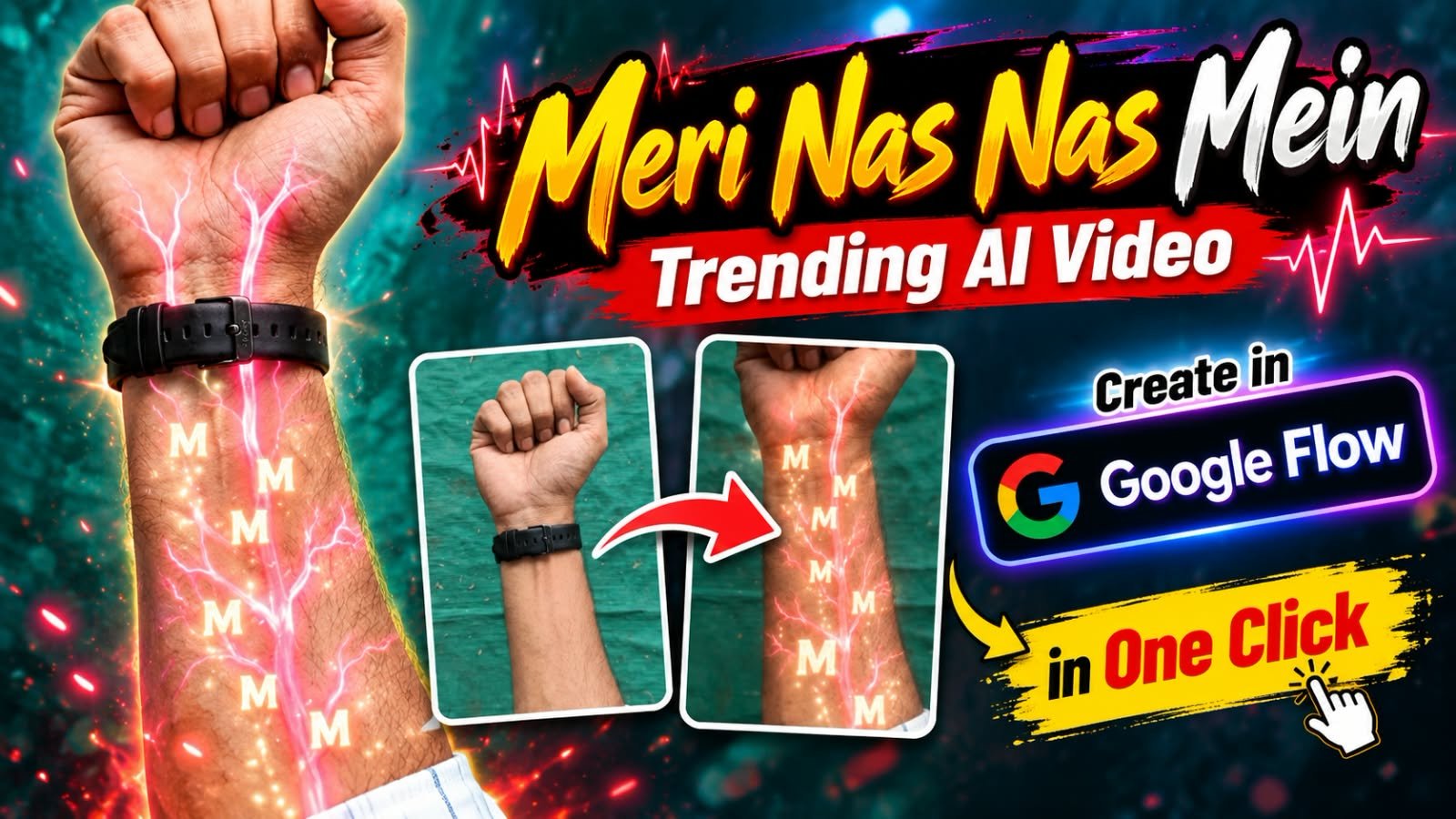
If you have been scrolling Instagram Reels this week, you have probably seen it already.
A guy raises his fist, glowing neon veins light up his forearm, and then the camera dives straight inside the bloodstream where his name’s first letter floats around like a 3D logo.
All of this plays on the song “Meri Nas Nas Mein” and the whole reel looks like a Hollywood VFX shot.
The good news is that you do not need After Effects or a big budget for this.
In this article, I will show you how to create the Meri Nas Nas Mein trending AI video in Google Flow in one click, with copy-paste prompts and a simple step-by-step process.
What Is the Meri Nas Nas Mein AI Video Trend?
This is a short 8 to 10 second vertical video, and it follows a very simple story:
- It starts with a close-up of your fist and forearm, usually with a smartwatch on the wrist.
- Glowing neon veins in green and blue start spreading up your arm.
- The camera zooms into the vein and enters a red bloodstream tunnel, with blood cells floating around.
- Your initial or name letter (like D, A, R, S) floats inside the blood in a glossy 3D style.
- The video cuts back to the hand, and the glowing letters now flow through the veins up to your fist.
The idea behind it is personal branding. The song says the person is in your veins, and the video shows exactly that, with your own name or initial.
That is why creators, singers, shayari pages and even normal people are making it for themselves, their partner or their friends.
Why Is This Trend Going Viral?
- It looks expensive but takes minutes. The VFX look gets people to watch till the end.
- It is personal. Everyone wants to see their own initial inside the video.
- It is easy to copy. You only need one arm photo and one prompt.
- The song fits perfectly. The lyrics and the visuals match, so the reel feels emotional and powerful at the same time.
- High share value. People make it for a girlfriend, best friend or brother and send it in DMs.
What You Need Before Starting
- One clear photo of your fist and forearm (vertical, good light, plain wall behind you works best)
- A Google account with access to Google Flow
- Your initial or short name (one to two letters work best)
- The song “Meri Nas Nas Mein” for the final reel
- CapCut or VN (optional, for adding the song and trimming)
Pro tip: Wear a black smartwatch or band, just like in the viral reels. It makes the glowing veins look more real.
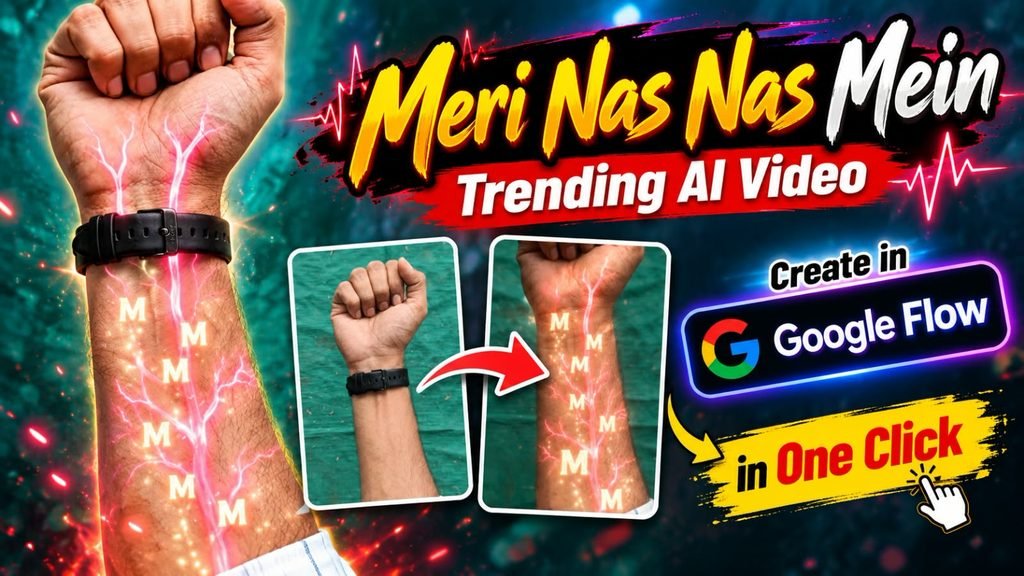
Create a cnematic, ultra-realistic visual-effects video using the uploaded hand image as the exact visual reference.


DURATION: 10 seconds.

FORMAT: Vertical 9:16.

STYLE: Photorealistic hand combined with cinematic red-orange sci-fi biological visual effects.


CUSTOMIZABLE LETTER:

The letter to display throughout the internal tunnel is: [ENTER YOUR LETTER HERE]


Replace [ENTER YOUR LETTER HERE] with any single English alphabet letter, such as A, R, P, S, or M. Use the selected letter consistently throughout the video.


HAND AND ARM:

Use the uploaded image as the exact reference for the hand and arm. Preserve the original skin tone, hand shape, finger positions, wrist, visible arm hair, sleeve, clothing, wristwatch, and background.


Do not replace the hand with a different hand. Keep the original fist position and wristwatch design consistent with the uploaded image.


SCENE AND ACTION:


0–2 SECONDS — ORIGINAL HAND:

Show the uploaded hand and forearm in the same position as the reference image. The fist remains closed and the wristwatch is clearly visible. Keep the original background and natural lighting.


A faint red glow begins appearing beneath the wristwatch. Thin, branching red-orange luminous lines gradually emerge from the wrist and spread along the forearm.


2–4 SECONDS — GLOWING VEINS:

The glowing branches extend across the forearm in a symmetrical, tree-like network. The lines have bright red-orange cores, soft luminous edges, and tiny sparkling particles.


Make the effect look like fictional cinematic energy travelling beneath the skin. Keep the skin intact and realistic, without wounds, blood, or damage.


The glow becomes brighter and pulses gently.


4–5 SECONDS — CAMERA PUSH-IN:

The camera smoothly moves closer to the glowing branches on the wrist and forearm.


Follow one bright branch as it expands across the frame. Transition seamlessly from the real forearm into a fully CGI microscopic tunnel.


The transition should feel like the camera is travelling inside a glowing biological pathway.


5–7 SECONDS — INTERNAL TUNNEL:

Reveal a deep red-orange, three-dimensional tunnel inspired by a microscopic biological environment.


The tunnel contains flowing translucent orange strands, circular wave patterns, glowing particles, and tiny floating sparks. The environment feels immersive, futuristic, and cinematic.


The camera travels forward continuously through the tunnel with smooth depth and realistic parallax.


7–10 SECONDS — FLOATING LETTERS:

Introduce the selected letter [ENTER YOUR LETTER HERE] inside the tunnel.


Multiple copies of this exact letter appear at different distances and sizes, floating and slowly rotating in three-dimensional space.


The letters have luminous pale-orange outlines, subtle golden highlights, and a soft glow that matches the surrounding environment.


Some letters drift past the camera in the foreground while others remain deeper inside the tunnel. The camera continues travelling forward, creating a strong sense of depth and motion.


Keep every letter readable and correctly shaped. Do not substitute other letters, numbers, words, or symbols.


CAMERA:

Begin with a close view of the original hand. Gradually push toward the wrist, follow the glowing branches, and transition into a continuous forward-moving tunnel shot.


Use smooth cinematic motion, realistic depth of field, and natural motion blur. Avoid sudden cuts, shaking, or random camera movements.


LIGHTING AND VISUAL EFFECTS:

Use rich red and orange illumination, glowing vein-like branches, volumetric light, floating particles, subtle reflections, and cinematic contrast.


Keep the opening hand realistic. Make the internal tunnel fully computer-generated and visually immersive.


AUDIO:

Use cinematic electronic ambience with a deep atmospheric hum, a rising energy sound during the glowing effect, and a smooth futuristic whoosh during the tunnel transition.


Keep the sound synchronized with the visual changes. No dialogue or voice-over.


STRICT RULES:

- Use the uploaded hand image as the original hand reference.

- Preserve the hand, wristwatch, clothing, and original background during the opening.

- Keep the fist closed and the hand shape consistent.

- The glowing effect must look fictional and cinematic.

- Transition smoothly from the forearm into the CGI tunnel.

- Use only the selected customizable letter.

- Keep the letter consistent throughout the tunnel.

- No additional words, captions, subtitles, or watermarks.

- No blood, wounds, or damaged skin.

- No unrelated scenes or objects.


FINAL RESULT:

A cinematic transformation from the uploaded hand into a glowing red-orange internal tunnel filled with floating, luminous 3D copies of the user's selected letter.Step 1: Take the Right Reference Photo
The photo decides about 70 percent of the result, so do not rush this part.
- Stand near a window or use soft daylight. Avoid harsh yellow room light.
- Make a fist and hold your forearm up so the full arm from fist to elbow is visible.
- Keep the background plain, like a light wall.
- Shoot in vertical (9:16) format.
- Keep your arm still and sharp, because blur will confuse the AI.
Step 2: Use This Image Prompt (Optional, for the First Frame)
If you want a more polished first frame, first add the glow effect on your photo using ChatGPT or Gemini.
Upload your arm photo and paste this prompt:
Step 3: Create the Video in Google Flow
- Open Google Flow and start a New Project.
- Choose Frames to Video and upload your arm photo (or the glow version from Step 2) as the first frame.
- Select the 9:16 vertical aspect ratio.
- Pick the clip length. 8 seconds is perfect for this trend.
- Choose a model. Veo 3.1 gives clean cinematic motion, and Gemini Omni Flash also supports longer clips up to 10 seconds. Model names and limits can change, so check what your Flow account shows.
- Paste the prompt below and hit Generate.
Copy-Paste Flow Prompt
Replace [YOUR INITIAL] with your letter before generating.
Step 4: Add the Song and Finish the Reel
- Download the video from Flow.
- Open CapCut or VN and import the clip.
- Add the song “Meri Nas Nas Mein” and sync the beat with the moment the camera enters the bloodstream.
- Trim the first half second if the start feels slow.
- Export in 1080p and upload to Instagram. You can also add the song directly from Instagram’s music library while posting.
Which AI Tool Is Best for This Trend?
| Tool | Best For | Verdict for This Trend |
|---|---|---|
| Google Flow | Turning your arm photo into a full video | Best choice, does the whole effect in one go |
| ChatGPT | Adding glowing veins on the first photo | Great for the first frame |
| Google Gemini | Image edit and quick prompt writing | Good alternative to ChatGPT |
| CapCut | Song sync, trimming, final export | Best for finishing the reel |
| VN | Free editing with clean timeline | Good for beginners |
| Midjourney | Stylised stills | Not ideal, no direct video of your own photo |
| Leonardo AI | Artistic images and short motion | Okay, but less control over your own arm |
Pro Tips for a Better Result
- Use a dark or plain wall. Messy backgrounds break the glow effect.
- Keep the initial short. One letter looks cleaner than a full name.
- If the veins look too heavy, add “subtle and thin” in the prompt.
- If the letters look flat, add “glossy translucent 3D letters with depth”.
- Generate two or three versions and pick the smoothest one. AI videos are never the same twice.
- Keep your arm steady while taking the photo, because shaky hands often lead to weird fingers.
- Add a short caption like “Meri nas nas mein tum ho” so the reel feels complete.
Common Problems and Quick Fixes
- Hand shape changes: Add “keep the hand and fingers exactly the same as the uploaded photo”.
- Letters look wrong or misspelled: Use only one capital letter and say “single capital letter”.
- Bloodstream looks too scary: Add “clean stylised sci-fi look, not gory”.
- No smooth transition: Ask for “seamless match cut between the vein and the tunnel”.
FAQs
What song is used in the Meri Nas Nas Mein AI video trend?
Creators use the song “Meri Nas Nas Mein” as the audio. You can add it from Instagram’s music library or in CapCut after generating the video.
Can I make this video with just one photo?
Yes. One clear forearm photo plus the prompt in this article is enough to generate the full video in Google Flow.
Do I need to show my face in this trend?
No. The whole video is only your fist and arm, so it is perfect for creators who do not want to show their face.
Can I put my name or my partner’s initial inside the bloodstream?
Yes. Just change [YOUR INITIAL] in the prompt. One or two letters give the cleanest result.
Why are my glowing veins looking fake or too thick?
Add “thin, subtle, realistic branching veins” to the prompt and make sure your reference photo has soft, even lighting.
How long should the video be?
8 seconds works best for this trend, and you can go up to 10 seconds if your Flow model supports it.
Is Google Flow free for this?
Flow works on a credit system and the free options can change. Check your account for the latest limits before generating.
Final Words
The Meri Nas Nas Mein AI video trend is simple, emotional and looks premium, which is why it is blowing up on Instagram right now.
Take a clean arm photo, paste the prompt in Google Flow, add the song and post it before the trend slows down.
If you make your own version, tag us on Instagram so we can feature it.
For more trending AI prompts, CapCut templates and viral reel ideas, join our Telegram channel and follow MeraPrompt on Instagram.
Rank Math SEO (not for publishing in the body)
- Focus keyword: Meri Nas Nas Mein AI video
- SEO title: Meri Nas Nas Mein Trending AI Video in Google Flow (One Click)
- Meta description: Create the viral Meri Nas Nas Mein glowing veins AI video in Google Flow with one photo and a copy-paste prompt. Step-by-step guide, tips and FAQs.
- Suggested slug: meri-nas-nas-mein-ai-video-google-flow