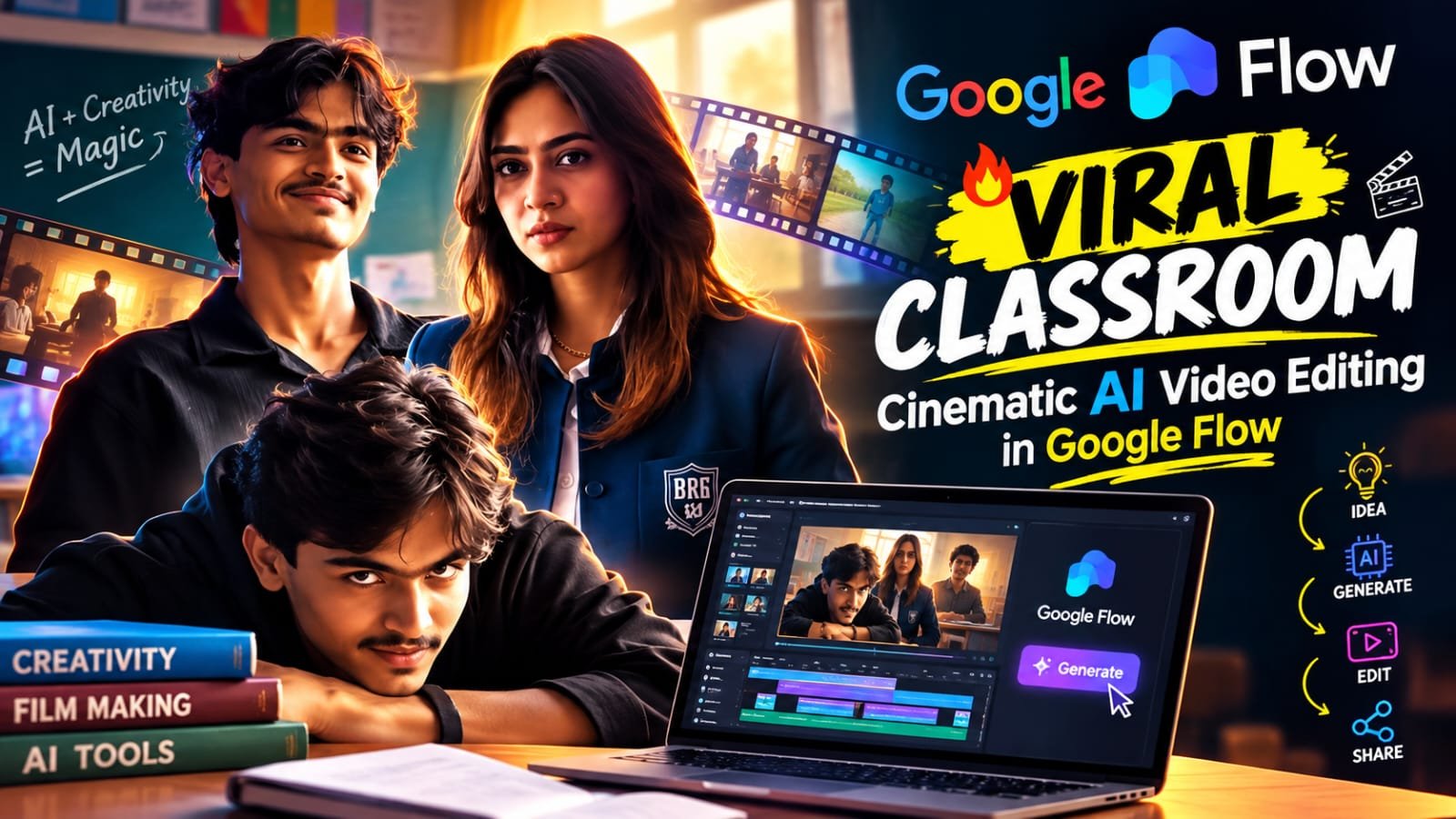
Have you seen the new classroom video that is going viral on Instagram?
It looks like a real movie scene.
A group of students walks in with style. A girl in a navy blazer gives a serious look. A boy in a black shirt sits at the back and smiles. The last shots turn black and white, and it feels like a film.
The good news is that you can make this video yourself.
You do not need a camera. You do not need actors. You only need a few photos, one AI tool called Google Flow, and a simple prompt.
In this article, I will show you how to make the classroom cinematic AI video in Google Flow step by step. I will use very simple words, so anyone can follow along.
What Is the Classroom Cinematic Video Trend?
This trend shows a short school or college story inside a classroom.
The video has many short scenes. Each scene lasts only a few seconds. Together, they make a mini movie.
Here is what you see in the viral video:
- A group of students in dark varsity jackets walks in a line
- A girl in a navy blazer stands in front of a green chalkboard with a serious face
- A wide shot of an empty classroom with desks and fans
- A boy in a black shirt looks back over his shoulder
- A close-up of the girl again, with a strong look
- The boy sits at his desk and smiles
- The last scenes turn black and white while the boy leans on the desk and sings
This style is popular because it feels like a real film. It also has a story, and stories get more views and shares.
Replace the boy in the video with the person in my reference photo. Keep the exact same pose, body position, clothes, hairstyle, camera angle, background, lighting, and movements. Make my tace and appearance look natural and realistic.throughout the entire video. Do not change the girl or the background. Only replace the boy with me.”What You Need Before You Start
Keep these things ready:
- A clear photo of the person you want in the video (front face, good light)
- A photo of a second person, if you want two characters
- A Google account to open Google Flow
- ChatGPT or Google Gemini to make or improve your character images
- CapCut or VN to join the clips and add music
- A trending song from Instagram
Tip: Use a clear photo. A clear photo gives a better face match in the video.
Best AI Tools for This Video
| Tool | What It Does | Best For |
|---|---|---|
| Google Flow | Turns your image and prompt into a video | Making the main video clips |
| ChatGPT | Makes the starting image | Character and classroom pictures |
| Google Gemini | Makes images and helps write prompts | Fixing and improving prompts |
| CapCut | Joins clips, adds music and effects | Final edit |
| VN | Free video editor | Final edit without watermark |
| Midjourney | Makes high-quality images | Artistic character looks |
| Leonardo AI | Makes images with style control | Different classroom looks |
For this trend, the best mix is ChatGPT for the image, Google Flow for the video, and CapCut for the final edit.
How to Make the Classroom Cinematic Video in Google Flow
Step 1: Make Your Character Image
Open ChatGPT or Google Gemini.
Upload your photo.
Paste the image prompt below. Then change the clothes to a navy blazer or a black shirt, and set the background to a classroom.
Make one image for each scene. For example:
- One image of the girl in front of the chalkboard
- One image of the boy at the desk
- One image of the group walking
Step 2: Open Google Flow
Go to Google Flow and sign in with your Google account.
Click on New Project.
Step 3: Choose the Video Mode
Pick the mode that lets you start with an image. Then upload your first character image.
Set the video size to vertical (9:16). This is the right size for Instagram Reels.
Step 4: Paste the Video Prompt
Now paste your prompt for the first scene.
(Paste your Google Flow video prompt here)Click Generate and wait for the clip.
Step 5: Make Every Scene One by One
Repeat the same steps for each scene.
Use this simple scene list:
- Group of students walking in a line, slow camera move
- Girl in the navy blazer, close-up, serious look, soft light on her face
- Wide classroom shot, boy walking in the background
- Boy in the black shirt turns his head and looks back
- Girl close-up again, small eye movement
- Boy sits at the desk and smiles
- Black and white shot, boy leans on the desk and sings
Make each clip 4 to 8 seconds long.
Step 6: Join the Clips in CapCut or VN
Open CapCut or VN.
Put all the clips in order.
Trim each clip so the cuts feel fast and sharp.
Now add:
- A trending song from Instagram
- A light film grain
- A soft warm color tone for the first scenes
- Black and white filter for the last 2 or 3 scenes
Export in the best quality and upload it to Instagram.
Pro Tips for a Better Result
- Use a clean face photo. No filters, no sunglasses, no heavy shadow.
- Keep the prompt short and clear. Long prompts can confuse the AI.
- Make one scene at a time. Do not try to make the full story in one go.
- Match the light. If one scene is warm and the next is cold, the video will look broken.
- Try again if the face changes. Run the same prompt 2 or 3 times and pick the best one.
- Cut on the beat. Change the scene when the song beat drops. It makes the video feel pro.
- Keep the last scene strong. The black and white ending is what people remember.
Common Mistakes to Avoid
- Using a blurry or dark photo
- Making clips that are too long
- Writing too many things in one prompt
- Forgetting to set the 9:16 size
- Using a song that is not trending
- Skipping the color grade in the final edit
Final Words
The classroom cinematic video is a great trend to try right now.
It looks big, but it is really simple. Make your images, create each scene in Google Flow, and join them in CapCut. That is all.
Try it today and post it before the trend goes down.
If you like this kind of content, join our Telegram channel MeraPrompt. We share new viral prompts and templates there every day.
FAQs
What is the classroom cinematic AI video trend on Instagram?
It is a short video that looks like a movie scene inside a classroom. It has many quick scenes, like students walking in, a girl with a serious look, and a boy smiling at his desk. The video is made with AI tools.
Which AI tool is used to make the classroom cinematic video?
Google Flow is used to turn images into video clips. ChatGPT or Google Gemini is used to make the starting images. CapCut or VN is used for the final edit.
Is Google Flow free to use for this classroom video?
Google Flow gives some free credits in many regions. After the free credits end, you may need a paid plan. Check the Flow website for the latest plan in your country.
What size should I use for the classroom video in Google Flow?
Use vertical 9:16. This is the best size for Instagram Reels and YouTube Shorts.
How long should each classroom scene be?
Keep each scene between 4 and 8 seconds. Short scenes make the video fast and exciting.
Can I make this classroom video with my own photo?
Yes. Upload a clear front-facing photo of yourself. Then use it as the starting image in Google Flow.
How do I get the black and white ending in the classroom video?
Make the clip normally in Google Flow. Then add a black and white filter in CapCut or VN for the last 2 or 3 scenes.
Why does the face change in my classroom video?
This happens when the photo is not clear or the prompt is too long. Use a sharp photo, keep the prompt short, and generate the clip again.
Which song should I use for the classroom cinematic video?
Pick a song that is trending on Instagram right now. Slow and emotional songs work best for this style.
Can I use this classroom video idea for a school or college project?
Yes. You can use it for a short film, a farewell video, or a fun memory video for your class.
Can I post this classroom AI video on Instagram and YouTube Shorts?
Yes. Add a good caption and a few related hashtags. Also say that the video is made with AI, so your audience knows.